
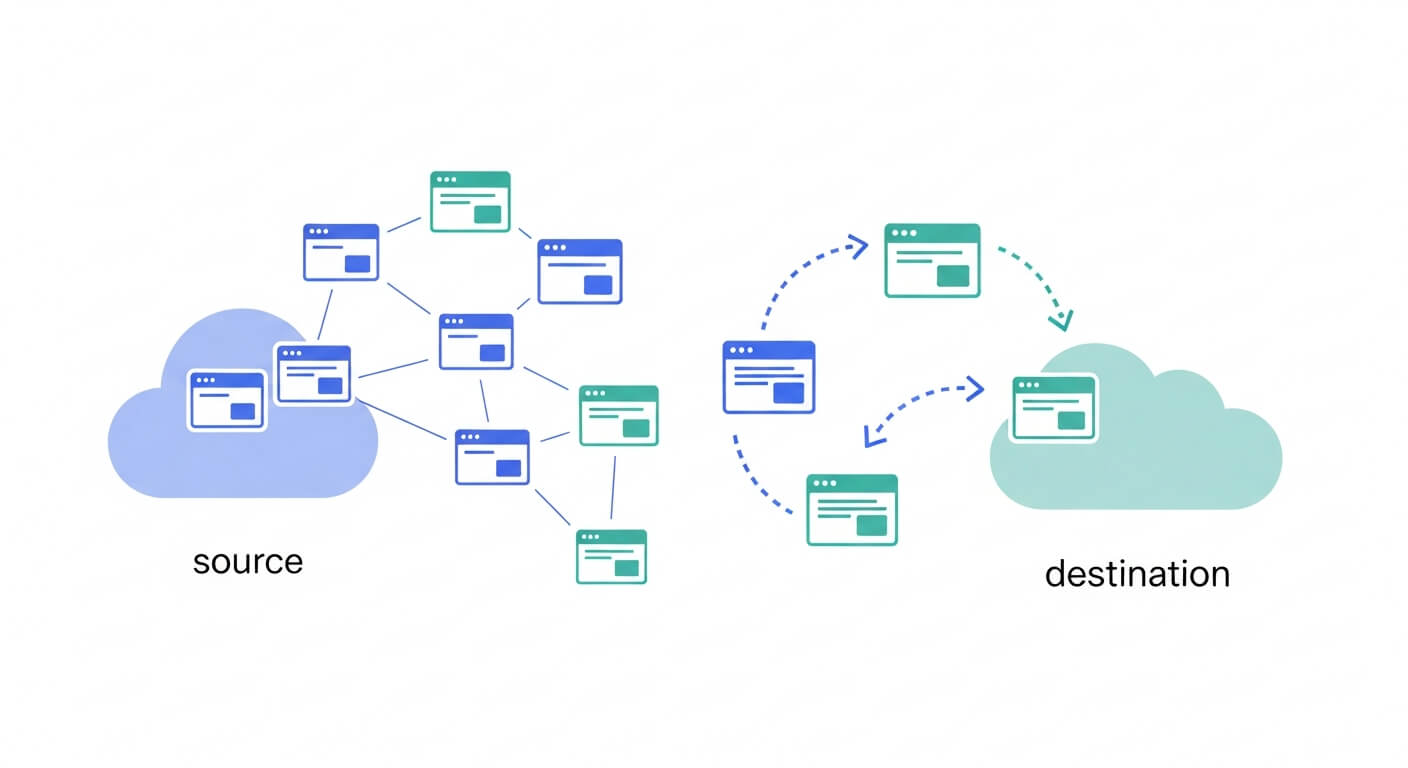
Migrating a WordPress multisite network is not the same as migrating a standard WordPress site. A single-site migration moves one database and one set of files. A multisite migration moves a shared database with network-level tables, multiple sets of site-specific tables, a shared user system, and media files organized across subdirectories. Get any of these wrong, and you break not just one site but every site on the network.
This guide covers every multisite migration scenario you are likely to encounter:
- Moving an entire multisite network to a new host
- Extracting a single subsite to standalone WordPress
- Importing a standalone site into multisite
- Converting a multisite network back to single site
- Moving subsites between two different multisite networks
Each scenario includes step-by-step instructions, database-level explanations, and the specific pitfalls that make multisite migrations different from everything else in WordPress.
Understanding Multisite Database Architecture
Before migrating anything, you need to understand how WordPress multisite organizes its data. This is what makes multisite migration fundamentally different from single-site migration.
A standard WordPress installation uses a set of tables with the wp_ prefix:
wp_posts
wp_postmeta
wp_options
wp_users
wp_usermeta
wp_comments
wp_commentmeta
wp_terms
wp_termmeta
wp_term_relationships
wp_term_taxonomy
wp_links
A multisite installation adds network-level tables and per-site tables. The network tables manage the entire installation:
wp_blogs          -- Registry of all sites in the network
wp_site           -- Network configuration
wp_sitemeta       -- Network-level settings
wp_registration_log
wp_signups
Each subsite gets its own copy of the content tables, prefixed with the site ID:
wp_2_posts        -- Posts for site ID 2
wp_2_postmeta
wp_2_options
wp_2_comments
wp_2_commentmeta
wp_2_terms
wp_2_termmeta
wp_2_term_relationships
wp_2_term_taxonomy
wp_2_links
The main site (site ID 1) uses the standard wp_ prefix. Site ID 2 uses wp_2_, site ID 3 uses wp_3_, and so on.
Users and usermeta are shared across the entire network. There is only one wp_users table and one wp_usermeta table, regardless of how many subsites exist. Each user has capabilities stored per site in wp_usermeta using keys like wp_2_capabilities and wp_2_user_level.
Media files are organized in subdirectories under wp-content/uploads/sites/. Site ID 2 stores media in /uploads/sites/2/, site ID 3 in /uploads/sites/3/, and so on. The main site stores media directly in /uploads/.
This architecture is why you cannot just copy database tables between single-site and multisite installations. Table prefixes must be converted, user capability keys must be updated, media paths must be reorganized, and serialized data containing URL references must be updated without corruption.
Subdomain vs. Subdirectory: What Changes for Migration
WordPress multisite can be configured in two ways, and the choice affects how migration works:
Subdirectory multisite: Sites live under paths on the main domain.
example.com(main site)example.com/blog-two/example.com/blog-three/
Subdomain multisite: Each site gets its own subdomain.
example.com(main site)blogtwo.example.comblogthree.example.com
| Factor | Subdirectory | Subdomain |
|---|---|---|
| DNS requirements | Single A record | Wildcard DNS (*.example.com) or individual A records |
| SSL certificates | Single certificate covers all sites | Requires wildcard SSL or individual certificates |
| URL replacement on migration | Simpler (one domain, different paths) | More complex (multiple hostnames to update) |
| Domain mapping | Less common | Often combined with domain mapping for custom domains |
| Server configuration | Standard | Requires wildcard handling in the web server |
If your multisite uses domain mapping (subsites have completely separate domains like customdomain.com), migration becomes more complex because you need to update multiple domain references in the database and handle DNS for each mapped domain independently.
Before any migration, document your setup: Run wp site list (WP-CLI) or check Network Admin > Sites to get a full list of all subsites, their URLs, and their site IDs. You will need this information throughout the migration process.
Pre-Migration Checklist
Multisite migrations have more moving parts than single-site migrations. Complete this checklist before starting:
Network Inventory
- List all subsites with their URLs, site IDs, and admin users (
wp site list --fields=blog_id,url) - Document the multisite type (subdomain or subdirectory)
- Note any domain-mapped sites and their DNS configuration
- Record total database size (
wp db size --tables --all-tables) - Record total uploads size for each subsite
- List network-activated plugins vs. site-activated plugins
- Document any mu-plugins or custom drop-ins
- Note custom
wp-config.phpconstants (MULTISITE,SUBDOMAIN_INSTALL,DOMAIN_CURRENT_SITE, etc.)
Server Requirements on New Host
- PHP version matches or exceeds current server
- MySQL/MariaDB version is compatible
- PHP memory limit is at least 256MB (512MB recommended for large networks)
- If using subdomains: wildcard DNS is supported
- If using subdomains: wildcard SSL or individual certificates are available
-
max_allowed_packetin MySQL is at least 64MB (important for large imports) - Server supports the same PHP extensions your plugins require
Backup
- Create a full network backup (database + all files)
- Verify you can restore from the backup before proceeding
- Store the backup in a separate location from both the old and new servers
For help choosing a backup storage strategy, cloud storage is generally the safest option for multisite networks since the backup files tend to be large.
Scenario 1: Moving an Entire Multisite Network to a New Host
This is the most common multisite migration scenario. You are moving everything (the main site, all subsites, all users, all media) to a new hosting provider.
Method A: Using All-in-One WP Migration (Recommended)
The Multisite Extension for All-in-One WP Migration handles the entire network migration in one operation. It exports all subsites, all network tables, the shared user system, and all media files into a single .wpress archive.
On the old server:
- Install All-in-One WP Migration network-wide from the Network Admin dashboard.
- Install the Multisite Extension.
- Go to Network Admin > All-in-One WP Migration > Export.
- Select Export entire network (the default).
- Click Export To > File to download the
.wpressarchive.
The export packages everything: the full database (network tables + all subsite tables), all media files organized by site, all plugins, all themes, and all configuration.
On the new server:
- Install a fresh WordPress multisite on the new host. The multisite type (subdomain or subdirectory) must match the original.
- Install All-in-One WP Migration network-wide and the Multisite Extension.
- Go to Network Admin > All-in-One WP Migration > Import.
- Upload the
.wpressfile. - The import replaces the fresh installation with your complete network.
After import:
- Log in using your credentials from the old server (the import replaces the user table).
- Go to Network Admin > Sites and verify all subsites are listed.
- Visit each subsite and confirm content, media, and functionality.
- Re-save permalinks on the main site and each subsite (Settings > Permalinks > Save Changes).
- If you changed domains, update the multisite constants in
wp-config.php(see the DNS section below).
Method B: Manual Migration (Database + Files)
For developers who prefer full control or need to work around hosting limitations.
Step 1: Export the database.
wp db export network-backup.sql --all-tables
The --all-tables flag is critical. Without it, WP-CLI may skip network tables or tables from subsites with non-standard prefixes.
Step 2: Transfer files.
Copy the entire WordPress installation to the new server. Use rsync for large transfers:
rsync -avz --progress /path/to/wordpress/ user@newserver:/path/to/wordpress/
Pay special attention to wp-content/uploads/sites/. This directory contains all subsite media, and missing it will break images across the entire network.
Step 3: Import the database.
wp db import network-backup.sql --allow-root
Step 4: Update URLs.
If the domain changed, you need to run search-replace across the entire network. This is where most manual multisite migrations go wrong.
wp search-replace 'old-domain.com' 'new-domain.com' --network --precise --recurse-objects --all-tables
The --network flag ensures WP-CLI processes every subsite’s tables, not just the main site. The --precise flag avoids partial matches. The --recurse-objects flag handles serialized data safely.
If you have domain-mapped subsites, run additional replacements for each mapped domain:
wp search-replace 'mapped-domain.com' 'new-mapped-domain.com' --all-tables --precise --recurse-objects
Step 5: Update wp-config.php.
Update the multisite constants to reflect the new domain:
define('DOMAIN_CURRENT_SITE', 'new-domain.com');
define('PATH_CURRENT_SITE', '/');
Step 6: Update DNS.
Point your domain to the new server. If you are using subdomains, you need both the main A record and a wildcard A record (*.new-domain.com). If you have domain-mapped subsites, update DNS for each mapped domain separately.
For a detailed walkthrough of DNS preparation, including lowering your TTL before migration, see our complete migration guide.
Scenario 2: Extracting a Single Subsite to Standalone WordPress
You want to pull one subsite out of a multisite network and set it up as an independent WordPress installation. This is common when a site outgrows the network, needs its own hosting, or when you are dissolving a multisite network.
Using All-in-One WP Migration
- In the Network Admin, go to Sites and click the subsite you want to extract.
- Navigate to that subsite’s dashboard (not the Network Admin).
- Go to All-in-One WP Migration > Export.
- The plugin automatically detects it is running on a multisite subsite and exports only that site’s data.
- Export to file and download the
.wpressarchive.
On the destination:
- Set up a fresh standalone WordPress installation.
- Install All-in-One WP Migration.
- Go to All-in-One WP Migration > Import and upload the
.wpressfile. - The plugin automatically converts the subsite tables to single-site format. Table prefixes like
wp_3_postsbecomewp_posts. Media files are moved from/uploads/sites/3/to/uploads/. URL references are updated throughout the database.
After import:
- Re-save permalinks.
- Install and activate any plugins that were network-activated on the old multisite (these are not included in the subsite export since they were managed at the network level).
- Check media files. Only media that belongs to this specific subsite is exported. If the subsite referenced images from other subsites or the main site, those references will be broken.
- Set up redirects from the old subsite URL to the new standalone URL if they are different.
Manual Extraction
This is significantly more complex than the plugin method because you need to handle table prefix conversion, user migration, and media reorganization manually.
Step 1: Identify the site ID.
wp site list --fields=blog_id,url
Note the blog_id for the site you want to extract. We will use site ID 3 as an example.
Step 2: Export the subsite tables.
wp db export subsite-3.sql --tables=$(wp db tables --url=subsite.example.com --format=csv)
This exports only the tables belonging to site ID 3 (wp_3_posts, wp_3_options, wp_3_comments, etc.).
Step 3: Export users.
Multisite shares users across the network. You need to identify which users belong to this subsite and export them separately:
wp user list --url=subsite.example.com --fields=ID,user_login,user_email,role --format=csv > users.csv
Step 4: Export media.
Copy the subsite’s media directory:
cp -r wp-content/uploads/sites/3/ /path/to/export/uploads/
Step 5: On the new standalone installation, import and convert.
Import the SQL file, then convert table prefixes:
RENAME TABLE wp_3_posts TO wp_posts;
RENAME TABLE wp_3_postmeta TO wp_postmeta;
RENAME TABLE wp_3_options TO wp_options;
-- Repeat for all wp_3_* tables
Update the table prefix references inside wp_options:
UPDATE wp_options SET option_name = 'wp_user_roles' WHERE option_name = 'wp_3_user_roles';
Run a search-replace to update URLs:
wp search-replace 'subsite.example.com' 'newdomain.com' --precise --recurse-objects
Import users, either manually or using WP-CLI:
wp user import-csv users.csv
Move the exported media files into the standard /uploads/ directory.
As you can see, the manual approach requires careful handling of table prefixes, user migration, serialized data, and media paths. The plugin method handles all of this automatically.
Scenario 3: Importing a Standalone Site into Multisite
You have a standalone WordPress site and want to add it as a subsite in an existing multisite network. This is common when consolidating multiple independent sites under one network for easier management.
Using All-in-One WP Migration
On the standalone site:
- Install All-in-One WP Migration.
- Go to All-in-One WP Migration > Export.
- Export to file and download the
.wpressarchive.
On the multisite network:
- Go to Network Admin > Sites > Add New and create a new blank subsite.
- Navigate to the new subsite’s dashboard (click the site URL under Network Admin > Sites, then go to its wp-admin).
- Go to All-in-One WP Migration > Import on the subsite (not on the Network Admin).
- Upload the
.wpressfile from the standalone site.
The plugin handles the conversion automatically:
- Standard
wp_postsbecomeswp_[new-site-id]_posts - Media files move from
/uploads/to/uploads/sites/[new-site-id]/ - User accounts are merged into the shared user table. If a user already exists in the network (matched by email), the existing network account is used and given the appropriate role on the new subsite.
- URL references throughout the database are updated to match the new subsite URL.
After import:
- Check that all plugins used by the standalone site are installed on the multisite network. Some plugins may need multisite-compatible versions.
- Verify media files are loading correctly.
- Check for hardcoded URLs in theme files or custom CSS that may still reference the old standalone domain.
- Set up redirects from the old standalone URL to the new subsite URL.
Things to Watch
Plugin compatibility: Not all WordPress plugins are multisite-compatible. Plugins that write to the root uploads directory, create custom database tables without site prefixes, or store absolute file paths may not work correctly after import.
Themes: If the standalone site uses a theme that is not installed on the multisite network, import it to the network’s themes directory before running the migration. In multisite, themes must be network-enabled before individual subsites can activate them.
Custom post types and taxonomies: If the standalone site uses plugins that register custom post types, those plugins must be active on the multisite network for the imported content to display correctly.
Scenario 4: Converting Multisite Back to Single Site
You have a multisite network and want to dissolve it, keeping only the main site (or one specific site) as a standalone WordPress installation.
Keeping the Main Site
If you want to keep site ID 1 (the main site), the process is straightforward because the main site already uses the standard wp_ table prefix.
Step 1: Export the main site.
Using All-in-One WP Migration on the main site’s dashboard (not Network Admin), export to file. The plugin exports only the main site’s data.
Step 2: Set up a fresh standalone WordPress installation.
Install WordPress normally on the same domain (or a new one).
Step 3: Import the export file.
Install All-in-One WP Migration and import the .wpress file. The main site’s content, media, and settings are restored as a standalone installation.
Step 4: Clean up.
- Remove multisite constants from
wp-config.php:
// Remove or comment out these lines:
// define('MULTISITE', true);
// define('SUBDOMAIN_INSTALL', false);
// define('DOMAIN_CURRENT_SITE', 'example.com');
// define('PATH_CURRENT_SITE', '/');
// define('SITE_ID_CURRENT_SITE', 1);
// define('BLOG_ID_CURRENT_SITE', 1);
- Remove the multisite rules from
.htaccessand let WordPress regenerate them by re-saving permalinks. - Delete the leftover
wp_2_*,wp_3_*tables and the network tables (wp_blogs,wp_site,wp_sitemeta, etc.) from the database if they were not removed during import.
Keeping a Subsite Instead
If you want to keep a subsite rather than the main site, follow Scenario 2 (extracting a subsite to standalone) and then decommission the old multisite network.
Scenario 5: Moving Subsites Between Multisite Networks
You have two separate multisite networks and want to move a subsite from one to the other. This is less common but happens during organizational restructuring or when consolidating networks.
The approach combines Scenario 2 and Scenario 3:
- Export the subsite from the source network using All-in-One WP Migration from the subsite’s dashboard. This creates a portable
.wpressfile with the subsite’s content converted to standalone format. - Create a new blank subsite on the destination network via Network Admin > Sites > Add New.
- Import the
.wpressfile into the new blank subsite on the destination network.
The plugin handles both conversions (multisite-to-standalone during export, standalone-to-multisite during import) automatically. Users are merged into the destination network’s shared user table.
WP-CLI Commands for Multisite Migration
WP-CLI is essential for managing multisite migrations, especially for large networks where browser-based tools may time out.
Network Information
# List all sites in the network
wp site list --fields=blog_id,url,registered,last_updated

# Get database size per table (helps plan migration)
wp db size --tables --all-tables

# List network-activated plugins
wp plugin list --status=active-network --fields=name,version

# List plugins active on a specific subsite
wp plugin list --url=subsite.example.com --status=active --fields=name,version
Export and Import with WP-CLI
All-in-One WP Migration supports CLI-based exports and imports, which is the most reliable method for large networks:
# Export entire network
wp ai1wm export --sites

# Export a specific subsite
wp ai1wm export --url=subsite.example.com

# Import on the destination
wp ai1wm import backup.wpress
Database Operations
# Export full network database
wp db export network.sql --all-tables

# Search-replace across all subsites (after manual migration)
wp search-replace 'old-domain.com' 'new-domain.com' --network --precise --recurse-objects --all-tables

# Dry run first to preview changes
wp search-replace 'old-domain.com' 'new-domain.com' --network --precise --recurse-objects --all-tables --dry-run

# Flush caches across all sites
wp site list --field=url | xargs -I {} wp cache flush --url={}

# Regenerate thumbnails for a specific subsite
wp media regenerate --url=subsite.example.com --yes
User Management
# List all super admins
wp super-admin list

# List users on a specific subsite
wp user list --url=subsite.example.com --fields=ID,user_login,roles

# Add a user to a subsite
wp user set-role username administrator --url=subsite.example.com
Handling Large Networks
Networks with 50+ subsites or databases over 1GB need a different approach than small networks.
Database Splitting
For very large databases, export each subsite’s tables individually rather than one massive dump:
# Export tables for each subsite separately
for site_id in $(wp site list --field=blog_id); do
    wp db export "subsite-${site_id}.sql" --tables=$(wp db tables --blog_id=$site_id --format=csv)
    echo "Exported site ${site_id}"
done
This gives you smaller, more manageable SQL files and lets you import subsites incrementally if needed.
Media Transfer
For networks with large media libraries (tens of GB), transfer media separately from the database:
- Use
rsyncwith the--compressflag for faster transfers - Consider offloading media to cloud storage before migration, which decouples media from hosting entirely
- Transfer the
wp-content/uploads/sites/directory as a separate operation from the database import
Timeouts
Large network imports commonly hit PHP and MySQL timeouts. Before importing:
- Increase
max_execution_timeto at least 600 seconds - Increase
memory_limitto at least 512MB - Increase MySQL
max_allowed_packetto at least 64MB - Increase MySQL
wait_timeoutto at least 600 seconds - Use WP-CLI imports instead of browser-based imports to bypass web server timeouts entirely
Post-Migration Validation Checklist
After migrating a multisite network, verify everything systematically. Multisite has more failure points than single-site, and issues on one subsite can be easy to miss.
Network Level
- Network Admin dashboard loads without errors
- All subsites appear in Network Admin > Sites
- Super admin accounts have correct permissions
- Network-activated plugins are active and functioning
- Network-enabled themes are available to subsites
Per-Subsite (Check Each One)
- Homepage loads correctly
- Posts and pages display with correct content and formatting
- Images and media files load (check the image URLs in the source, they should point to
/uploads/sites/[id]/) - Admin dashboard is accessible
- Site-specific plugins are active and functioning
- Forms, search, and interactive features work
- User accounts can log in with correct roles
- Plugins with server-specific settings are reconfigured (caching, SMTP, security, backups). See plugins that need reconfiguration after migration for the full checklist.
Technical Verification
- Permalinks are working (re-save on each subsite if you get 404s)
- SSL certificates are valid for all subdomains and mapped domains
- Cron jobs are running (
wp cron event list --url=subsite.example.com) - Email is sending from all subsites
-
wp-config.phpmultisite constants are correct for the new environment -
.htaccessor Nginx configuration has the correct multisite rewrite rules - No mixed content warnings (HTTP resources on HTTPS pages)
SEO Verification
- Each subsite’s sitemap is accessible and contains correct URLs
- Google Search Console properties are updated for each subsite (if applicable)
- Redirects from old URLs to new URLs are working (test with
curl -I) -
robots.txtfor each subsite is correct and not blocking crawlers - Canonical URLs in page source point to the correct new URLs
Troubleshooting Multisite Migration Issues
“Error establishing a database connection” After Import
Cause: The wp-config.php database credentials do not match the new server, or the multisite constants reference the wrong domain.
Fix: Verify the database credentials in wp-config.php. Then check that DOMAIN_CURRENT_SITE matches your actual domain. If you migrated to a new domain and forgot to update this constant, WordPress cannot route requests to the correct subsite.
Subsites Return 404 for All Pages
Cause: The .htaccess rewrite rules for multisite are missing or incorrect on the new server.
Fix: For subdirectory multisite, your .htaccess should include:
RewriteEngine On
RewriteRule .* - [E=HTTP_AUTHORIZATION:%{HTTP:Authorization}]
RewriteBase /
RewriteRule ^index\.php$ - [L]

# add a trailing slash to /wp-admin
RewriteRule ^([_0-9a-zA-Z-]+/)?wp-admin$ $1wp-admin/ [R=301,L]

RewriteCond %{REQUEST_FILENAME} -f [OR]
RewriteCond %{REQUEST_FILENAME} -d
RewriteRule ^ - [L]
RewriteRule ^([_0-9a-zA-Z-]+/)?(wp-(content|admin|includes).*) $2 [L]
RewriteRule ^([_0-9a-zA-Z-]+/)?(.*\.php)$ $2 [L]
RewriteRule . index.php [L]
For subdomain multisite, the rules are simpler:
RewriteEngine On
RewriteRule .* - [E=HTTP_AUTHORIZATION:%{HTTP:Authorization}]
RewriteBase /
RewriteRule ^index\.php$ - [L]

RewriteCond %{REQUEST_FILENAME} -f [OR]
RewriteCond %{REQUEST_FILENAME} -d
RewriteRule ^ - [L]
RewriteRule . index.php [L]
If you are on Nginx, you need the equivalent multisite rewrite rules in your server block.
Subsite Media Files Return 404
Cause: Media files for subsites are stored in /uploads/sites/[site-id]/. If this directory was not transferred, or if the web server does not have read permissions on it, all subsite images will be broken.
Fix: Verify the directory structure exists:
ls -la wp-content/uploads/sites/
Each subsite should have its own numbered directory. Check file permissions (should be readable by the web server user, typically www-data or apache).
Users Cannot Log In After Migration
Cause: Multisite stores user sessions and capabilities using the domain name. If the domain changed and wp_usermeta was not updated, login cookies are set for the wrong domain.
Fix: Clear all user session tokens:
wp user meta delete --all "session_tokens" --network
Users will need to log in again, but their accounts and passwords remain intact.
“Cookies are blocked” Error on Subsites
Cause: The cookie domain in wp-config.php does not match the new domain, or cross-subdomain cookies are not configured correctly.
Fix: For subdomain multisite, add or update this line in wp-config.php:
define('COOKIE_DOMAIN', '');
Setting COOKIE_DOMAIN to an empty string lets WordPress set the correct cookie domain dynamically for each subsite. Do not hardcode a specific domain here on multisite installations.
Database Table Prefix Mismatch
Cause: The database table prefix in wp-config.php does not match the actual table names in the database. This can happen if you imported a database that used a different prefix.
Fix: Check what prefix your tables actually use:
wp db query "SHOW TABLES" | head -20
Then verify the $table_prefix in wp-config.php matches. For multisite, the prefix must match the base prefix (usually wp_), and the network tables and subsite tables must all use the same base prefix.
For general migration errors like white screen of death, 500 errors, or slow performance, see our guide to 15 common WordPress migration errors and how to fix them. For debugging WordPress errors, enable WP_DEBUG and check the error log.
Frequently Asked Questions
Can I migrate a multisite network without the Multisite Extension?
The free version of All-in-One WP Migration does not support multisite network operations. For extracting a single subsite, you need the Multisite Extension. For full network migrations, you also need it. The extension handles table prefix conversion, user merging, media path reorganization, and serialized data updates automatically. The manual method using WP-CLI and database tools is the alternative, but it requires advanced technical knowledge.
Can I change from subdirectory to subdomain (or vice versa) during migration?
This is technically possible but not recommended as part of a migration. It requires changing the SUBDOMAIN_INSTALL constant, updating all subsite URLs in the database, updating DNS configuration, and modifying web server rewrite rules. Do the migration first, verify everything works, and then change the multisite type as a separate operation.
How long does a multisite network migration take?
For a small network (under 10 subsites, under 2GB total), expect 30 to 60 minutes for the export, transfer, and import. Add 30 minutes for verification. For large networks (50+ subsites, 10GB+), the transfer itself may take several hours depending on your connection speed. Use WP-CLI for large migrations to avoid browser timeouts. Allow additional time for DNS propagation if you are changing domains (up to 48 hours).
What happens to user accounts during migration?
Users are shared across a multisite network. When you migrate the entire network, all users come with it. When you extract a subsite, only users who have a role on that subsite are included. When you import a standalone site into multisite, users are merged. If a user’s email already exists in the network, the existing network account is used (no duplicate is created), and the appropriate role is granted on the new subsite.
Do I need wildcard DNS for subdomain multisite on the new host?
Yes. Subdomain multisite requires either wildcard DNS (*.example.com pointing to your server) or individual A records for each subdomain. Check with your new hosting provider that they support wildcard DNS and wildcard SSL certificates.
Can I migrate just some subsites instead of the whole network?
Yes. The Multisite Extension supports selective migration, letting you choose specific subsites to include or exclude from the export. You can also export subsites individually from their dashboards.
What about WooCommerce subsites on multisite?
WooCommerce on multisite adds the complexity of per-subsite order tables, payment configurations, and customer data. The migration process is the same, but verification is more critical. After migration, test the checkout flow on each WooCommerce subsite, verify payment gateway credentials, and confirm that subscription renewals and webhook endpoints are working correctly.
The Multisite Extension costs $319. What does it include?
The Multisite Extension includes everything you need for multisite migration: full network export and import, subsite extraction, standalone-to-multisite import, subsite cloning within a network, selective migration, and WP-CLI support. It also includes the Unlimited Extension at no extra charge, so there are no hosting upload size restrictions. The license covers up to 50 sites.
Ready to migrate your multisite network? Download All-in-One WP Migration and the Multisite Extension to handle the entire process.
Migrating a single WordPress site instead? Read our complete guide to migrating WordPress to a new host for a full walkthrough. Running a WooCommerce store? See our WooCommerce migration guide. Something broken after migration? Check our migration troubleshooting guide for fixes. Need to reconfigure plugins on each subsite? See our guide to plugins that need reconfiguration after migration.
Need help? Visit our support center for migration assistance from the team that has helped migrate over 60 million WordPress sites.