
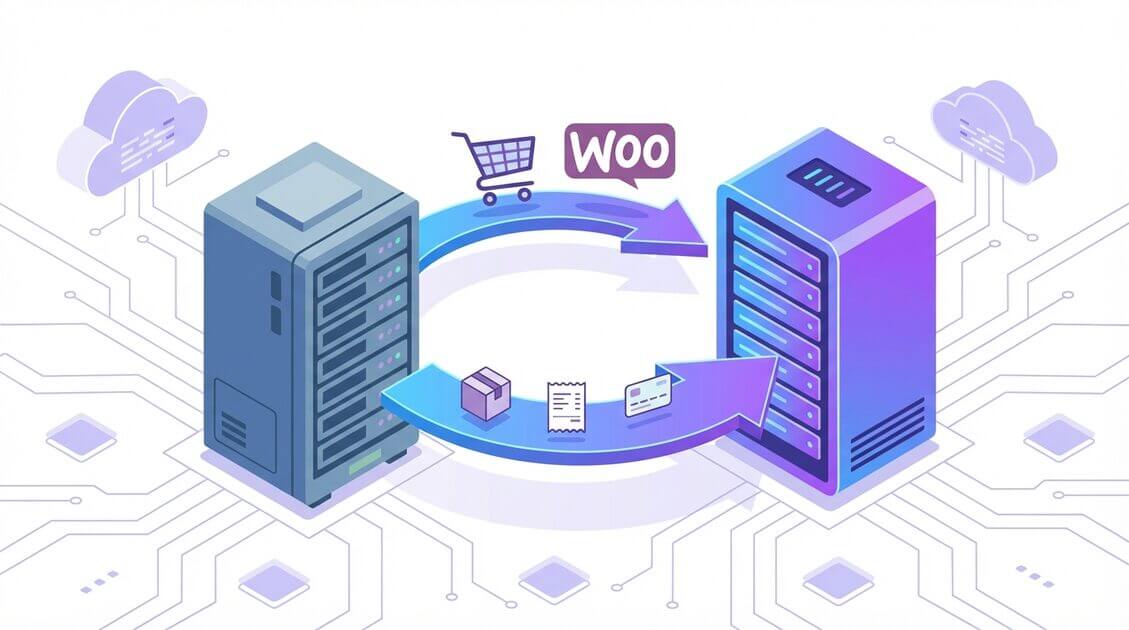
Migrating a WooCommerce store is not the same as migrating a regular WordPress site. A standard site has pages, posts, and media. A WooCommerce store has all of that plus live orders, customer accounts, payment gateway configurations, subscription records, tax rules, shipping zones, and product inventory. Get any of these wrong during migration, and you lose revenue.
This guide covers everything you need to know about moving a WooCommerce store to a new host. We will walk through the pre-migration audit, the actual transfer process using All-in-One WP Migration, post-migration testing, payment gateway re-authentication, and how to handle live orders during the transition window.
Whether you are switching hosts for better performance, moving to a new domain, or migrating from a staging environment to production, this is the most complete WooCommerce migration resource available.
Why WooCommerce Migrations Are Different
A regular WordPress migration moves files and a database. A WooCommerce migration moves an active business. Here is what makes it more complex:
| Factor | Regular WordPress | WooCommerce Store |
|---|---|---|
| Data at risk | Posts, pages, media | Orders, customer data, payment records, inventory |
| Downtime cost | Missed visitors | Lost sales and revenue |
| Third-party integrations | Social embeds, analytics | Payment gateways, shipping APIs, tax services |
| URL sensitivity | Permalinks matter for SEO | Product URLs, checkout URLs, and account URLs all affect revenue |
| Post-migration config | Minimal | Payment gateway re-authentication, webhook updates, API key rotation |
| Compliance | Standard | PCI-DSS considerations for payment data |
The bottom line: you cannot treat a WooCommerce migration like a simple WordPress migration. You need a WooCommerce-specific process.
Pre-Migration Audit Checklist
Before you touch anything, audit your current store. This checklist ensures nothing falls through the cracks.
Store Data Inventory
Run through each of these and note the counts. After migration, you will verify these numbers match on the new server.
- Products: Total count, including variations. Note products with custom fields or complex configurations.
- Orders: Total count across all statuses (processing, completed, refunded, on-hold). Record your most recent order number.
- Customers: Total registered customer accounts.
- Coupons: Active coupons with their usage limits and expiry dates.
- Subscriptions: If you use WooCommerce Subscriptions, note all active, paused, and pending-cancel subscriptions.
- Reviews: Product reviews and ratings.
- Media: Product images, gallery images, and downloadable files.
Configuration Snapshot
Document these settings so you can verify them after migration:
- Payment gateways: Which gateways are active (Stripe, PayPal, Square, etc.) and their mode (live vs. test).
- Shipping zones and methods: All zones, flat rates, free shipping thresholds, and real-time rates.
- Tax settings: Tax classes, rates, and whether you are using automated tax calculation.
- Email settings: Transactional email configuration (WooCommerce emails, SMTP plugin settings).
- Webhook endpoints: Any webhooks sending data to external services (Zapier, CRMs, fulfillment tools).
- API keys: WooCommerce REST API keys used by external integrations.
- Permalink structure: Your current permalink format for products and product categories.
Third-Party Integration List
Make a list of every external service connected to your store:
- Payment processors (Stripe, PayPal, Authorize.net, Square)
- Shipping calculators (ShipStation, Shippo, EasyPost)
- Accounting software (QuickBooks, Xero, FreshBooks)
- Email marketing (Mailchimp, Klaviyo, ActiveCampaign)
- Inventory management systems
- CRM platforms (HubSpot, Salesforce)
- Analytics and tracking pixels
Each of these may need configuration updates after migration. Some use domain-specific API keys or webhook URLs that must point to the new server.
Hosting Environment Check
Verify that your new host meets these requirements:
- PHP version: Match or exceed your current version. Check WooCommerce’s minimum requirements.
- MySQL/MariaDB version: Ensure compatibility.
- PHP memory limit: WooCommerce recommends at least 256MB. For large stores, 512MB is better.
- Max upload size: Should accommodate your largest product images and export files.
- SSL certificate: Your new host must support HTTPS. E-commerce sites require SSL for payment processing.
- PHP extensions: WooCommerce requires
curl,gd,mbstring,xml, andzip.
How to Migrate a WooCommerce Store (Step-by-Step)
There are three common approaches to WooCommerce migration. Here is when to use each:
| Method | Best For | Technical Skill | Downtime Risk |
|---|---|---|---|
| Plugin migration (All-in-One WP Migration) | Most stores, any size | Beginner | Very low |
| Manual migration (FTP + phpMyAdmin) | Developers who need full control | Advanced | Medium |
| Host-managed migration | When your new host offers it free | None | Varies |
We will focus on the plugin method because it handles the most complex parts automatically, including serialized data, URL replacement, and database transformations.
Step 1: Back Up Your Current Store
Before anything else, create a full backup of your live store. This is your safety net.
- Install the All-in-One WP Migration plugin on your current WooCommerce site.
- Go to All-in-One WP Migration > Export in your WordPress dashboard.
- Click Export To > File.
- The plugin will package your entire site, including the database, media files, plugins, themes, and all WooCommerce data, into a single
.wpressarchive. - Download the
.wpressfile to your local computer.
This backup contains everything: products, orders, customer accounts, payment gateway settings, tax rules, shipping zones, and your full order history. Keep this file safe. If anything goes wrong during migration, you can restore from it.
For stores with large media libraries, your hosting provider may impose upload size restrictions. The Unlimited Extension bypasses these hosting limits entirely, and also adds the ability to export directly to cloud storage destinations like Google Drive or Amazon S3.
Step 2: Prepare the New Server
Set up WordPress on your new hosting environment:
- Create a new database and database user on your new host.
- Install a fresh copy of WordPress.
- Install the All-in-One WP Migration plugin on the new WordPress installation.
Do not install WooCommerce or any other plugins on the new site. The migration will bring everything over from your existing store, including all plugin files, themes, and configurations.
Step 3: Import Your Store
- On your new WordPress site, go to All-in-One WP Migration > Import.
- Drag and drop your
.wpressfile into the import area, or click to browse for the file. - The plugin will unpack the archive and rebuild your entire store on the new server. This includes replacing all database references to your old domain with the new one automatically.
- When the import finishes, click Permalink Settings to flush your rewrite rules.
- Log in with your original WordPress credentials (the same username and password from your old site).
The entire process typically takes a few minutes for small stores and up to 30 minutes for larger sites with extensive media libraries.
Step 4: Handle DNS and Go Live
This is the step where most people worry about downtime. Here is how to minimize it:
Option A: Use the hosts file method (zero downtime for you)
Before updating DNS, you can preview your new site by editing your local hosts file to point your domain to the new server’s IP address.
On Mac/Linux, open Terminal and run:
sudo nano /etc/hosts
Add this line (replace with your actual values):
NEW.SERVER.IP.ADDRESS yourdomain.com www.yourdomain.com
Save the file. Now when you visit your domain in a browser, you will see the new server. Everyone else still sees the old server. This lets you test everything before making the switch public.
Option B: Update DNS
When you are satisfied the new site is working correctly:
- Log into your domain registrar (GoDaddy, Namecheap, Cloudflare, etc.).
- Update the A record to point to your new server’s IP address.
- If using nameservers, update those to your new host’s nameservers.
DNS Propagation: Changes can take 1 to 48 hours to propagate globally. During this window, some visitors will hit the old server and some will hit the new one. This is why Step 5 (handling live orders during transition) matters.
Tip: Before migrating, lower your DNS TTL (time-to-live) to 300 seconds (5 minutes). Do this 24-48 hours before migration. This ensures DNS changes propagate faster when you make the switch.
Step 5: Handle Live Orders During the DNS Transition
This is the step every other migration guide skips. During the 24-48 hours of DNS propagation, orders may come in on both the old and new servers. Here is how to handle it:
Strategy 1: Maintenance mode on the old server
After updating DNS, immediately put your old server into maintenance mode. This prevents new orders from being placed on the old site. Visitors hitting the old server will see a “We’re updating, back shortly” message and will retry later (hitting the new server after propagation).
Strategy 2: Low-traffic migration window
Check your analytics for the time of day and day of week when your store gets the least traffic. Schedule your DNS switch during that window to minimize the number of orders that might split between servers.
Strategy 3: Manual order reconciliation
If you cannot afford any downtime, keep both servers active during propagation. After DNS has fully propagated (verify using a tool like whatsmydns.net), check the old server for any orders placed during the transition. Manually recreate those orders on the new server if needed.
For most stores, Strategy 1 (maintenance mode on old server) is the simplest and most effective approach.
Post-Migration Testing Checklist
Do not skip this. A migration is not complete until you have verified every component of your store works correctly on the new server.
Critical Tests (Do These First)
- Homepage loads with correct styling, images, and navigation
- Product pages display correctly with images, prices, variations, and add-to-cart buttons
- Cart functionality works (add items, update quantities, remove items, apply coupons)
- Checkout process completes successfully (test with a small real order or use Stripe/PayPal test mode)
- Payment gateway processes test transactions without errors
- Order confirmation email is sent and received after checkout
- Customer account pages load (order history, addresses, payment methods)
- Admin order management works (view orders, change status, issue refunds)
Data Verification
Compare these counts against your pre-migration audit:
- Product count matches (including variations)
- Order count matches across all statuses
- Customer account count matches
- Active coupon count matches
- Subscription count matches (if applicable)
- Product reviews are present
Configuration Verification
- Payment gateways are in live mode (not test/sandbox)
- Shipping zones and rates are correct
- Tax rates calculate properly
- Transactional emails are configured and sending
- Webhook endpoints are updated to the new domain (if domain changed)
- API keys are working for external integrations
- Cron jobs are running (WooCommerce uses wp-cron for scheduled tasks like subscription renewals)
SEO Verification
- Permalinks are working (no 404 errors on product pages)
- XML sitemap is generated and accessible
- Google Search Console is connected and showing no new errors
- Canonical tags point to the correct domain
- robots.txt is not blocking important pages
- Product schema/structured data is rendering correctly
For a deeper SEO verification process, see our WordPress SEO migration checklist, which covers pre-migration auditing, redirect strategies, and monitoring timelines for all migration types.
Re-Authenticating Payment Gateways
After migration, your payment gateways may need re-authentication. This is because many gateways use domain-specific API keys or webhook URLs.
Stripe
- Go to WooCommerce > Settings > Payments > Stripe.
- Verify your API keys (publishable and secret) are still correct.
- Update your Stripe webhook URL in your Stripe Dashboard to point to your new domain:
https://yournewdomain.com/?wc-api=wc_stripe - Run a test transaction to confirm everything works.
PayPal
- Go to WooCommerce > Settings > Payments > PayPal.
- Verify your PayPal email address and API credentials.
- If using PayPal IPN (Instant Payment Notification), update the notification URL in your PayPal account settings.
- Check that the return URL after payment points to your new domain.
Square
- Go to WooCommerce > Settings > Payments > Square.
- You will likely need to disconnect and reconnect your Square account, since the OAuth token is domain-bound.
- Click Disconnect, then Connect to Square, and authorize the new domain.
General Tips for All Gateways
- Always test with a small real transaction after migration (not just test mode).
- Check that refunds work by refunding your test transaction.
- Verify that order status updates trigger correctly (payment received, payment failed, refund processed).
- If you use a gateway that requires PCI-DSS compliance documentation, update your compliance records with the new hosting details.
Handling WooCommerce Subscriptions
If your store uses WooCommerce Subscriptions, migration requires extra attention. Subscriptions involve recurring billing schedules, and a failed migration can interrupt scheduled payments.
Before migration:
- Note all active subscription IDs, their next payment dates, and their payment methods.
- Disable automatic renewal attempts on the old server immediately after DNS switch (to prevent duplicate charges).
After migration, verify:
- All subscriptions appear with correct statuses (active, on-hold, pending-cancel).
- Next payment dates are preserved.
- The payment gateway token (used for automatic renewals) is still valid. If your gateway uses domain-specific tokens, you may need to ask customers to update their payment method.
- Run a manual renewal on a test subscription to confirm the billing cycle works.
Common issue: If you change domains, Stripe tokens may still be valid (they are account-bound, not domain-bound). PayPal reference transactions may require re-authorization. Check with your specific gateway’s documentation.
Troubleshooting Common WooCommerce Migration Issues
“White Screen of Death” After Import
Cause: Usually a PHP memory limit issue. WooCommerce stores with thousands of products and orders require more memory during import.
Fix: Increase PHP memory in wp-config.php:
define('WP_MEMORY_LIMIT', '512M');
Or contact your host to increase the PHP memory limit.
Products Show “Out of Stock” After Migration
Cause: WooCommerce stock management settings or cron jobs did not transfer correctly.
Fix: Go to WooCommerce > Settings > Products > Inventory and verify stock management is enabled. Then go to WooCommerce > Status > Tools and click Clear transients and Recount terms.
Checkout Returns “Payment Failed” Errors
Cause: Payment gateway credentials are incorrect, webhook URLs point to the old server, or SSL is not configured on the new server.
Fix:
- Verify SSL is working on the new domain (your checkout page must load over HTTPS).
- Re-enter your payment gateway API keys.
- Update webhook URLs in your payment processor’s dashboard.
- Test in sandbox/test mode first, then switch to live.
Customer Accounts Cannot Log In
Cause: Password hashing uses a secret salt stored in wp-config.php. If the salt values differ between old and new server, passwords break.
Fix: All-in-One WP Migration transfers the complete wp-config.php configuration, including salts, so this issue should not occur with plugin-based migration. If you migrated manually, copy the AUTH_KEY, SECURE_AUTH_KEY, LOGGED_IN_KEY, and NONCE_KEY values from your old wp-config.php to the new one.
Emails Not Sending After Migration
Cause: Your new host may not have the same mail configuration as your old one. Many hosts restrict the mail() function.
Fix: Install an SMTP plugin (WP Mail SMTP, FluentSMTP) and configure it with your email service provider. If you were already using an SMTP plugin, check that the credentials transferred correctly.
Scheduled Subscription Renewals Not Firing
Cause: WordPress cron (wp-cron.php) depends on site traffic to trigger. On a new server with no traffic yet, scheduled events may not run.
Fix: Set up a real server-side cron job:
*/5 * * * * wget -q -O /dev/null https://yourdomain.com/wp-cron.php?doing_wp_cron
This runs wp-cron every 5 minutes regardless of traffic, ensuring subscription renewals process on time.
Images Missing or Broken
Cause: Media files did not transfer completely, or file paths in the database reference the old domain.
Fix: All-in-One WP Migration handles URL replacement automatically during import. If you migrated manually, use a search-and-replace tool to update file paths in the database. Be careful to use a serialization-aware tool (not a raw SQL find-and-replace) to avoid corrupting serialized data.
When to Use Manual Migration Instead
Plugin migration works for the vast majority of stores. However, there are cases where manual migration makes more sense:
- Extremely large databases (100,000+ orders) where a full export file would be impractical.
- Selective migration where you want to move products and settings but not order history.
- Server-to-server transfer where both servers are on the same network and you can do a direct database dump and file transfer.
For manual migration, the general process is:
- Export your database using
mysqldumpor phpMyAdmin. - Download all WordPress files via FTP/SFTP.
- Upload files to the new server.
- Import the database on the new server.
- Update
wp-config.phpwith new database credentials. - Run a search-and-replace on the database for the old domain (use WP-CLI:
wp search-replace 'olddomain.com' 'newdomain.com'). - Flush permalinks and test.
The risk with manual migration is higher because you must handle serialized data carefully. WordPress stores serialized arrays in the database, and a naive find-and-replace will corrupt them. Tools like WP-CLI’s search-replace command handle serialization correctly. All-in-One WP Migration handles this automatically, which is why we recommend the plugin approach for most stores.
Migration Method Comparison
| Feature | All-in-One WP Migration | Manual (FTP + phpMyAdmin) | Host Migration Service |
|---|---|---|---|
| Difficulty | Easy, one-click | Advanced, multi-step | Easy (done for you) |
| Serialized data handling | Automatic | Must use specialized tools | Varies |
| URL replacement | Automatic | Manual search-and-replace | Usually handled |
| Hosting upload limits | Bypassed with extension | No limits (server-to-server) | Varies by host |
| Cost | Free (basic) / $69+ (unlimited) | Free | Usually free with hosting |
| WooCommerce-specific testing | You test | You test | Host may test |
| Rollback capability | Restore from .wpress backup | Restore from database dump | Varies |
| Time required | 10-30 minutes | 1-3 hours | Hours to days |
| Support available | Plugin support team | Self-service | Host support team |
Frequently Asked Questions
Can I migrate WooCommerce from one host to another without losing orders?
Yes. A full-site migration using All-in-One WP Migration transfers your complete database, which includes all orders, customer records, and transaction history. Nothing is lost.
How long does a WooCommerce migration take?
For most stores, the actual export and import process takes 10 to 30 minutes. Add time for DNS propagation (1-48 hours) and post-migration testing (1-2 hours). Plan for a full day including preparation and verification.
Will my SEO rankings be affected by migration?
If you keep the same domain and URL structure, your rankings should not be affected. All-in-One WP Migration preserves your permalink structure and handles URL replacement automatically. If you are changing domains, set up 301 redirects from the old domain to the new one and use Google Search Console’s Change of Address tool.
Do I need to reinstall WooCommerce on the new server?
No. All-in-One WP Migration transfers everything, including WooCommerce, all extensions, your theme, and all settings. You start from a clean WordPress install on the new server, and the import brings everything over.
What if my WooCommerce store is larger than my hosting upload limit?
The free plugin has no import limit of its own, but your hosting provider may restrict upload sizes through PHP settings (upload_max_filesize, post_max_size). The Unlimited Extension bypasses these hosting limits entirely, so you can import stores of any size regardless of your server configuration.
Can I migrate from Shopify to WooCommerce?
That is a platform migration, which is different from a host-to-host migration. You would need to export your Shopify data (products, customers, orders) as CSV files and import them into WooCommerce using the built-in importer or a tool like Cart2Cart. This guide focuses on migrating an existing WooCommerce store between hosting environments.
Should I put my store in maintenance mode during migration?
During the export and import process, your live store continues operating normally. We recommend putting the old server into maintenance mode only after you have updated DNS, to prevent orders from being placed on the old server during propagation.
How do I verify that all my product data migrated correctly?
Compare product counts, check a sample of products across different categories, verify that product images display correctly, test variable products with all variations, and confirm that prices and inventory levels match your pre-migration records.
Summary
Migrating a WooCommerce store successfully requires more planning than a standard WordPress migration. The key steps are:
- Audit your store before migration (products, orders, customers, gateway configs, integrations).
- Export with All-in-One WP Migration to create a complete backup.
- Import on the new server with one click.
- Handle the DNS transition carefully to minimize order disruption.
- Re-authenticate payment gateways and update webhook URLs.
- Test everything using the post-migration checklist.
- Monitor for 72 hours after going live to catch any issues early.
The most common migration failures come from skipping the post-migration verification steps, not from the migration itself. Take the time to test your checkout flow, verify your payment gateways, and confirm your subscription renewals are processing.
Ready to migrate your WooCommerce store? Download All-in-One WP Migration and follow this guide step by step.
If your hosting provider restricts upload sizes, the Unlimited Extension starts at $69 and bypasses these limits so you can import stores of any size.
Something not working after migration? Check our guide to 15 common WordPress migration errors and how to fix them for step-by-step solutions to white screens, 404 errors, database connection failures, and more.
Need help? Visit our support center for migration assistance from the team that has helped migrate over 60 million WordPress sites.